Power Point
Creating a PowerPoint Presentation.
The Primary EDET class all participated in this in my opinion was of my favorite lesson. Since i was always intrigued by the Microsoft Office feature. I sat in my seat with great anticipation to hear my name being called but was still afraid that if should have gotten the opportunity to sit in the "hot seat", the instruction given to me would have way pass my knowledge of PowerPoint Presentations.
I was very impressed by classmates skills therein and indeed I learnt a lot. Though some were not fully aware of what to do the collaborative effort of the class asssisted. I loved the hide and reveal, the inclusion of sound and various designs
PowerPoint Presentation is a tool that assist in making a leeson more exciting for students. As a reult of thhe incoparation videos, pictures, sound effects hide and reveal ,thhe teacher can encourage students at different interval during the lesson to expund or give suggestion about a particular slide. In addition, it eliminates the use of papers, since the visual aids are incoporated therein.
the final copy of PowerPoint presentation.vertebrae
The Primary EDET class all participated in this in my opinion was of my favorite lesson. Since i was always intrigued by the Microsoft Office feature. I sat in my seat with great anticipation to hear my name being called but was still afraid that if should have gotten the opportunity to sit in the "hot seat", the instruction given to me would have way pass my knowledge of PowerPoint Presentations.
I was very impressed by classmates skills therein and indeed I learnt a lot. Though some were not fully aware of what to do the collaborative effort of the class asssisted. I loved the hide and reveal, the inclusion of sound and various designs
PowerPoint Presentation is a tool that assist in making a leeson more exciting for students. As a reult of thhe incoparation videos, pictures, sound effects hide and reveal ,thhe teacher can encourage students at different interval during the lesson to expund or give suggestion about a particular slide. In addition, it eliminates the use of papers, since the visual aids are incoporated therein.
the final copy of PowerPoint presentation.vertebrae
- Select the text.
- Under Drawing Tools, choose Format.

- Do one of the following:
- To change the color of your text, choose Text Fill, and then choose a color.
- To change the outline color of your text, choose Text Outline, and then choose a color.
- To apply a shadow, reflection, glow, bevel, 3-D rotation, a transform, choose Text Effects, and then choose the effect you want.
Add pictures
On the Insert tab, do one of the following:
- To insert a picture that is saved on your local drive or an internal server, choose Pictures, browse for the picture, and then choose Insert.
- To insert a picture from the Web, choose Online Pictures, and use the search box to find a picture.

- Choose a picture, and then click Insert.
Add speaker notes
Slides are best when you don’t cram in too much information. You can put helpful facts and notes in the speaker notes, and refer to them as you present.
- To open the notes pane, at the bottom of the window, click Notes
 .
. - Click inside the Notes pane below the slide, and begin typing your notes.

Give your presentation
On the Slide Show tab, do one of the following:
- To start the presentation at the first slide, in the Start Slide Show group, click From Beginning.
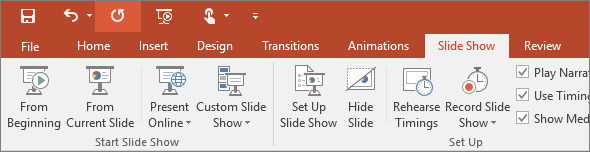
- If you’re not at the first slide and want to start from where you are, click From Current Slide.
- If you need to present to people who are not where you are, click Present Online to set up a presentation on the web, and then choose one of the following options:
Get out of Slide Show view
To get out of Slide Show view at any time, on the keyboard, press Esc.


Comments
Post a Comment